
How the video frame extractor works
MusicFlick extracts still images in three steps: choose a local video, select a moment or an interval, and download the result. The preview shows the decoded picture and its dimensions before export. Start with one PNG to check the frame, then use a batch when you need several images from the same clip.
- 1. Choose your video
Open a video from your device. It is read locally and is never sent to the extractor’s server.
- 2. Pick the moment
Enter a time, choose First frame or Last frame, or set a start, end and interval for a batch.
- 3. Extract and save
Choose PNG or JPG, extract the images, then use the download link. Batches arrive in a ZIP.
Video-to-image examples
These three examples pair an input clip with a still taken five seconds into that same video. The exported picture keeps the decoded video dimensions; the smaller page preview does not set the download size. Play the clip to see the surrounding movement, then compare the saved image with that moment.
Neon rooftop gathering

A vertical crowd scene: a 496 × 864 PNG taken at 5 seconds. The source is smaller than 1080p, so extraction does not invent extra detail.
Anime singer above the city

A pastel anime performance: a 720 × 1280 PNG taken at 5 seconds, keeping the source portrait framing.
A performer beside a burning piano
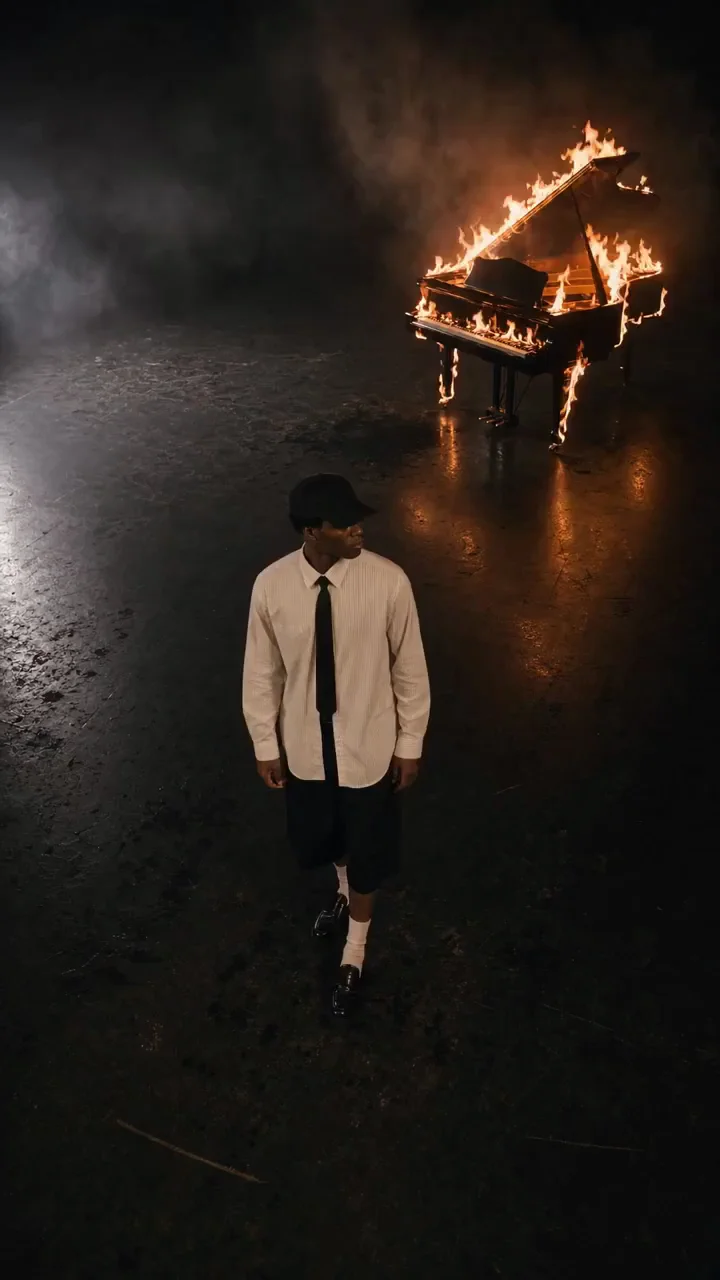
A performer beside a burning piano: a 720 × 1280 PNG taken at 5 seconds. Existing blur and lighting remain part of the image.
Can I use this video frame extractor online for free?
MusicFlick’s video frame extractor is free for both single-image downloads and interval batches. There is no account requirement, credit charge or added watermark. Processing happens on your device, so there is no paid generation model behind the export. The same per-file and per-batch limits apply to everyone; no subscription unlock is needed to save the pictures.
How do I extract the first or last frame?
MusicFlick’s First frame and Last frame buttons decode the first displayed picture and the final available picture in the video track. You can also enter a time in seconds; the extractor selects the frame whose start time is at or before that moment and displays its timestamp. A black ending stays black: the tool does not automatically replace it with an earlier scene.
Can I extract high-quality frames and download a ZIP?
MusicFlick exports the decoded video dimensions, not the smaller on-page preview. PNG adds no lossy compression; JPG uses a high-quality setting for smaller files. Batch mode samples at your chosen interval, excludes the end time, and packages up to 120 images in a ZIP, with a 128 MiB image-data limit. Interval sampling is not an export of every encoded video frame.
Pricing and credits for frame extraction
MusicFlick charges $0 and 0 credits for the frame extraction options below. You can save the full-size result without a purchase or a login. The watermark column refers to marks added by this tool; a watermark already in your video remains in the extracted picture. Paid music-video generation is a separate feature with its own pricing.
| Output | Price / credits | Added watermark | Limit |
|---|---|---|---|
| PNG | $0 · 0 credits | None | One selected image per export |
| JPG | $0 · 0 credits | None | One selected image per export |
| PNG / JPG batch ZIP | $0 · 0 credits | None | 120 images · 128 MiB image data |
What this frame extractor cannot do
MusicFlick cannot restore detail lost to blur or compression, remove existing watermarks, or preserve HDR and original metadata in these image exports. Only local files are accepted; paste-in YouTube or TikTok links and protected streams are unsupported. Files must fit the size, duration and pixel limits, and the browser must be able to decode the video. Keep the tab open while extracting.
Frequently asked questions
Can I use the frame extractor on iPhone or Android?
Yes, in a browser that supports decoding your video. Device memory and codec support vary; try a short MP4 first. A video that works on a desktop may need conversion before it works on a phone.
Which local video files can I choose?
Choose MP4, MOV, M4V or WebM, up to 500 MiB and 10 minutes, with at most 8,294,400 decoded pixels per frame. A compatible container does not guarantee a supported codec; H.264 MP4 is a practical starting point.
Do I need to download an app?
No app or extension is required. Open this page in your browser and select a video already saved on your device.
Are my video and extracted images uploaded?
The extractor reads your chosen file locally and creates image downloads in your browser. It does not upload the video or the extracted images. The website may still make ordinary requests for page assets and account or analytics features; local processing is not a promise that the whole website makes no network requests.
More ways to work with your music
MusicFlick’s music-video generator can turn an excerpt of your own song into a short video. Use the generator when you need a new shot, and use this free frame extractor when you already have a clip and want a still image. The music-video tool has separate credit prices; extracting pictures here does not spend those credits.